How to Import Interactive Brokers Statements Into a Trading Journal
Import an Interactive Brokers activity statement CSV into SimpleTradeLog, then review supported stock trades, net P&L, commissions, fees, and performance.
14-day free trial. No credit card required. Then $89 per year or $9 per month.

A trading journal starts with reliable source data. Before you can review trades or analyze results, you need to get the supported broker data into your journal.
If you use Interactive Brokers, start with the detailed guide to exporting an IBKR Activity Statement, then save it to your computer, import it into SimpleTradeLog, review your trading history, and analyze performance after commissions and fees.
Why import Interactive Brokers statements?
Interactive Brokers reports are excellent for record keeping, but they are not optimized for performance analysis.
Executions
Review entries, exits, partial fills, and position changes.
Commissions
See how trading costs affect each result.
Regulatory fees
Include applicable fees in net performance.
Realized P&L
Connect broker results with your trade review.
Account activity
Keep the broader account context close to your journal.
Start with the standard Activity Statement CSV
If you do not have the file yet, follow the dedicated guide to export an Interactive Brokers activity statement. Choose CSV rather than PDF, HTML, or a Flex Query, then save the downloaded file somewhere easy to find.
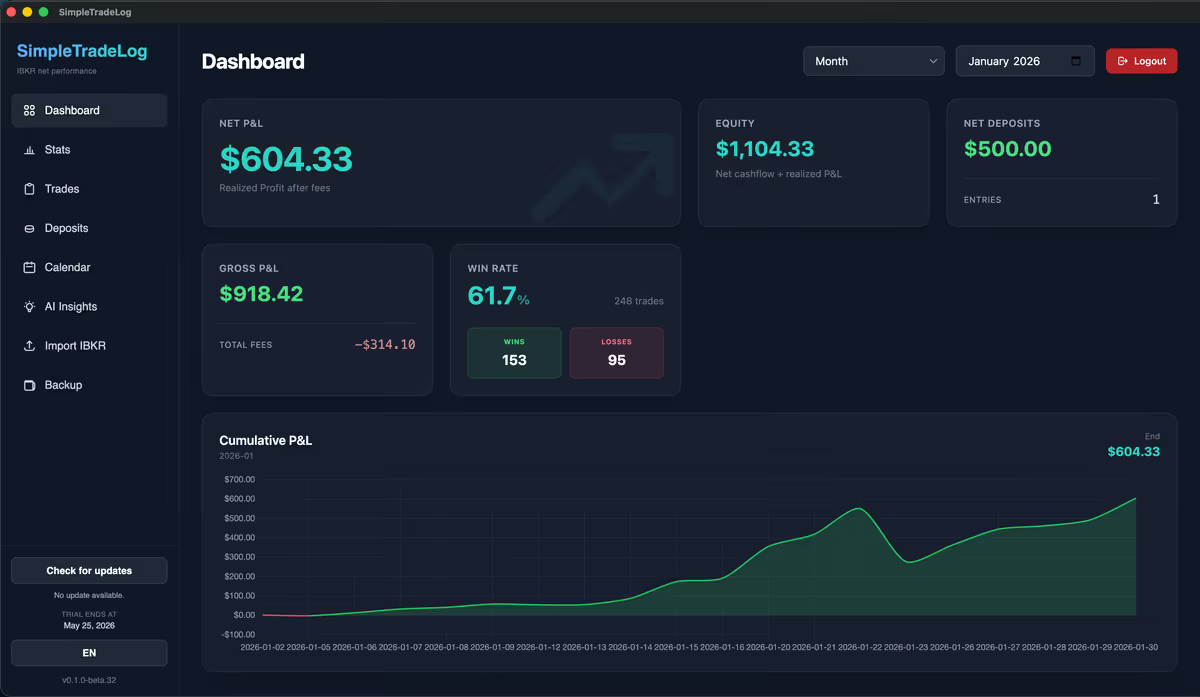
Step 1: Import the statement into SimpleTradeLog
Open SimpleTradeLog, navigate to Import Statement, and select the file you downloaded from Interactive Brokers.
Calculated after import
Executions, commissions, regulatory fees, gross P&L, and net P&L.
No trade-by-trade entry
Choose the file manually, without spreadsheet formulas or copy-and-paste cleanup.
Step 2: Review your trades
Once the import completes, your trades become available inside SimpleTradeLog for review.
Entries
Review where trades started.
Exits
Review where trades closed.
Position sizes
Compare size with results and risk.
Trade outcomes
Understand which trades worked.
Net results
Review profit and loss after costs.
Step 3: Analyze trading performance
The real value comes after the import, when raw statement data becomes useful trading insight.
| Analysis | What it helps answer | Why it matters |
|---|---|---|
| Net P&L | What did I actually keep? | Shows true performance after fees and commissions. |
| Performance by ticker | Which stocks contribute most? | Identifies symbols that help or hurt your results. |
| Trading statistics | How strong is my edge? | Tracks win rate, average winner, average loser, profit factor, largest gain, and largest loss. |
| Performance over time | Am I improving? | Compares daily, weekly, and monthly performance trends. |
Broker reports are the record. Journals support review.
A consistent review can surface costs, outlier trades, symbol-level results, and changes in position sizing.
Use the broker statement as the source of truth and the journal as a review tool.

Common problems when importing IBKR statements
A few issues show up often when traders try to maintain their own journal manually.
Missing fees
Many spreadsheets ignore commissions and regulatory fees. SimpleTradeLog includes them when calculating net performance.
Manual data entry
Entering trades by hand is slow and often introduces errors. Statement imports eliminate that work.
Partial fills
Interactive Brokers statements often contain partial fills. SimpleTradeLog handles these during the import process.
Continue researching IBKR journals
Follow the dedicated Interactive Brokers activity statement export guide, read the Interactive Brokers trading journal guide, the IBKR trade journal guide, open an IBKR .tlg file, compare the best trading journal for Interactive Brokers, learn when to replace a trading spreadsheet, or review pricing.
Frequently asked questions
Practical answers for traders importing Interactive Brokers statement data.
Can I import historical Interactive Brokers statements?
Yes. You can export historical activity statements and import them into SimpleTradeLog.
Does SimpleTradeLog calculate commissions?
Yes. Commissions are included when calculating net trading performance.
Does it include regulatory fees?
Yes. Applicable fees are processed during the import.
Can I replace my spreadsheet?
For supported IBKR stock trades, manual file imports replace trade-by-trade entry and formulas for common performance calculations.
Final thoughts
Importing the correct Interactive Brokers activity statement CSV is only the first step. The practical goal is a consistent view of trading performance after costs.
A dedicated journal can reduce data preparation and leave more time for reviewing the underlying trades.
Import your IBKR statement and start reviewing
Turn Interactive Brokers statement exports into net P&L, trade history, and performance analytics without spreadsheet cleanup.