How to open an Interactive Brokers .tlg file
Downloaded an IBKR trade log and not sure what to do with it? Learn what a .tlg file is, why it is hard to read manually, and how to turn it into a trade review.
14-day free trial. No credit card required. Then $89 per year or $9 per month.

What is an IBKR .tlg file?
An Interactive Brokers .tlg file is a trade log export. It contains trading activity from IBKR in a format intended for software import, auditing, and record keeping rather than casual reading.
That is why double-clicking the file often feels confusing. Your computer may not know which app should open it, and even if a text editor opens the file, the rows are not organized like a trading journal.
Why the file is difficult to read manually
A broker export is raw data. A journal answers trader questions.
Rows need context
Executions, partial fills, and adjustments need to be grouped before they tell a clear story.
Costs matter
Commissions and fees can change the result you actually kept.
Dates need filtering
A useful review usually starts with a day, week, month, or tax year.
Symbols need grouping
You need to know which tickers helped and which repeatedly hurt results.
How to open and use a .tlg file
- 1Download the trade log from IBKRExport the period you want to review and save the .tlg file somewhere easy to find.
- 2Import it into SimpleTradeLogOpen SimpleTradeLog and select the IBKR trade log during import.
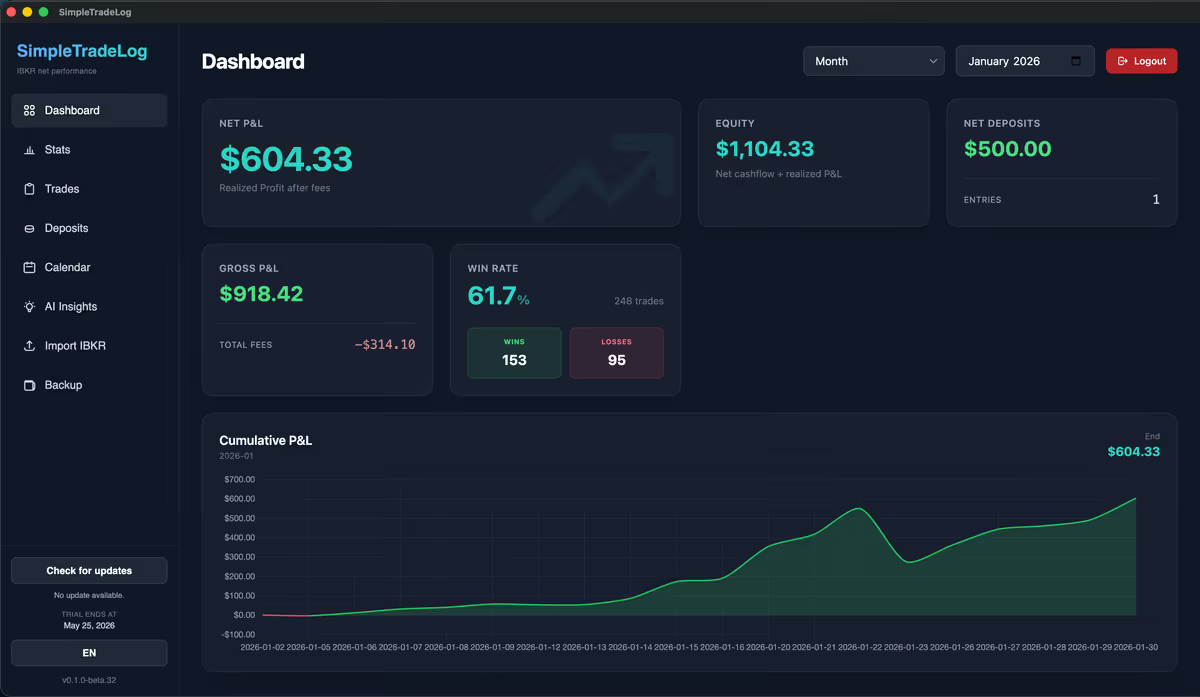
- 3Review the processed tradesCheck trade count, symbols, dates, net P&L, commissions, and fees.
- 4Analyze what changedUse dashboards, statistics, calendar view, and symbol filters for the actual review.
Can I convert .tlg to CSV?
In some workflows traders export other IBKR reports as CSV instead. But a simple file conversion is not the same as journaling. You still need to parse executions, apply costs, group trades, and build reports.
If your goal is performance review, it is usually faster to import the file into a journal built for the Interactive Brokers format.
SimpleTradeLog imports IBKR .tlg files directly
SimpleTradeLog supports Interactive Brokers stock trades from .tlg trade logs and activity statement .csv files, then shows net performance after commissions and fees.
Imported trades and cashflows stay local. Account, license, billing, and anonymous product analytics use online services.
Continue researching IBKR imports
Learn how to export an Interactive Brokers activity statement, follow the Interactive Brokers statement import guide, compare the best trading journal for Interactive Brokers, or see why traders choose an offline trading journal.
Frequently asked questions
Common questions about Interactive Brokers trade log files.
What program opens an IBKR .tlg file?
A text editor may open the raw file, but a trading journal is needed to turn it into useful trade history and performance analysis.
Can SimpleTradeLog import .tlg files?
Yes, for supported Interactive Brokers stock trades. It also imports activity statement CSV files.
Is a .tlg file the same as a statement CSV?
No. They are different Interactive Brokers export formats, but both can be useful inputs for a trading journal when supported.
Does SimpleTradeLog upload my trade log?
No. Imported trades and cashflows stay local on your computer.
Open your IBKR trade log as a journal
Import your .tlg file and review net P&L, costs, symbols, dates, and trading performance without spreadsheet cleanup.