How to Export an Interactive Brokers Activity Statement
Download an IBKR activity statement as a CSV file, then import supported stock trades into a trading journal for net P&L and performance review.
14-day free trial. No credit card required. Then $89 per year or $9 per month.

The short answer
In the Interactive Brokers Client Portal, open Performance & Reports → Statements, run an Activity Statement for the period you want, select CSV as the output format, and save the generated file.
Watch the IBKR activity statement export
This walkthrough shows the export and import workflow from Interactive Brokers to SimpleTradeLog.
Open the tutorial on YouTubeExport an IBKR activity statement step by step
The labels below follow the current Interactive Brokers Client Portal. IBKR may adjust the interface over time.
- 1
Open Statements
Sign in to Client Portal and choose Performance & Reports → Statements. Some account layouts show the same page under Menu → Reporting → Statements.
- 2
Run an Activity Statement
Find the Activity Statement in the statement panel and open its run options. Use the standard Activity Statement rather than creating a Flex Query for this workflow.
- 3
Choose the period
Select the account and reporting period you want to review. Choose a custom date range when the preset periods do not cover the trades you need.
- 4
Select CSV
Set the output format to CSV. A PDF or web view is useful for reading, but it cannot be imported into SimpleTradeLog.
- 5
Run the statement
Generate the report. Interactive Brokers will prompt you to download or save the CSV file when it is ready.
- 6
Check the downloaded file
Confirm that the filename ends in .csv, then keep the file somewhere easy to find during import.
For the latest portal instructions, see Interactive Brokers’ official statement guide.
Which Interactive Brokers export should you use?
IBKR offers several report formats, but they are not interchangeable when importing into a journal.
| Export | Typical use | SimpleTradeLog import |
|---|---|---|
| Activity Statement CSV | Structured account and trading activity | Supported for stock trades |
| TWS trade log (.tlg) | Trade log exported from TWS desktop, not Client Portal | Supported for stock trades |
| PDF or HTML | Human-readable statement review | Not supported |
| Flex Query | Customized reporting and external integrations | Not supported |
| OFX or QFX | Personal finance and accounting software | Not supported |
Import the activity statement into your journal
Open SimpleTradeLog, choose the statement import, and select the CSV you downloaded. Supported IBKR stock trades are processed into executions, commissions, applicable fees, gross P&L, and net P&L.
The broker statement remains the source of truth. The journal organizes supported data for dashboards, calendar review, statistics, and symbol analysis.
Continue with the Interactive Brokers import guide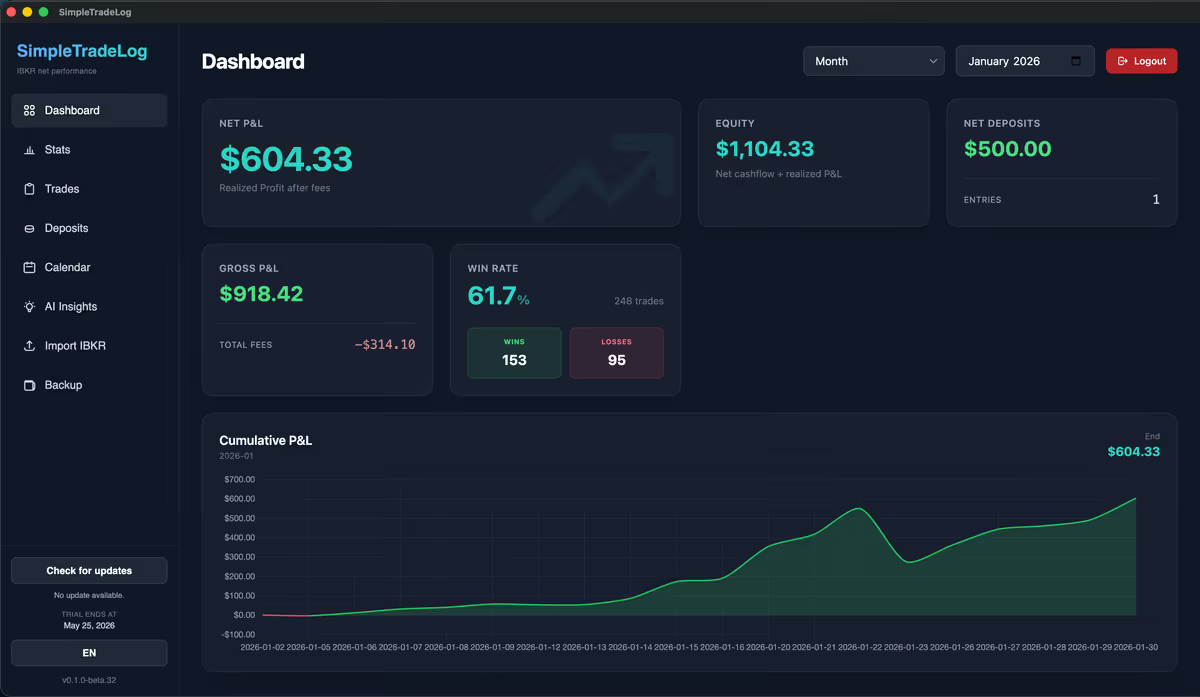
Common export mistakes
Check these details before troubleshooting the journal import.
Downloading a PDF
Run the statement again and choose CSV. Renaming a PDF to .csv does not convert the file.
Choosing a Flex Query
Flex Queries use customizable fields and are a different format. Export the standard Activity Statement CSV instead.
Selecting the wrong period
Confirm the statement date range includes the executions you expect before importing it.
Continue researching IBKR exports
Next, learn how to import Interactive Brokers statements, see how to open an IBKR .tlg file, review the Interactive Brokers performance analysis guide, or compare the best trading journal for Interactive Brokers.
Frequently asked questions
Practical answers about downloading Interactive Brokers activity statements.
How do I download an Interactive Brokers activity statement?
In Client Portal, open Performance & Reports, choose Statements, run an Activity Statement for your chosen period, select CSV, and save the generated file.
Which IBKR statement format does SimpleTradeLog support?
SimpleTradeLog supports stock trades from standard activity statement CSV files. It also supports IBKR .tlg trade logs through a separate import.
Can I import an IBKR PDF statement?
No. Generate the statement again and choose CSV as the output format.
Does SimpleTradeLog support IBKR Flex Queries?
No. SimpleTradeLog currently imports supported stock trades from standard activity statement CSV files and .tlg trade logs.
Turn your IBKR export into a focused review
Import supported Interactive Brokers stock trades and review net P&L, costs, calendar results, statistics, and symbol performance.